The whole CRM platform, one price.
Claim King Core gives every account the whole CRM platform, with no feature tiers and no per-assignment fees; Connect and AI Tools are add-ons you can choose if and when you need them, and these are the pieces you will likely use the most.
We built The Claim King to manage our own files as an appraiser and umpire; you can read how that came about on our About Us page.
You will not need all of this on your first day. You can start with one file, worked the way you already work it, and add the rest as you go; several pieces, like the fee calculations and the reminders for unpaid invoices, are off until you decide to set them up.
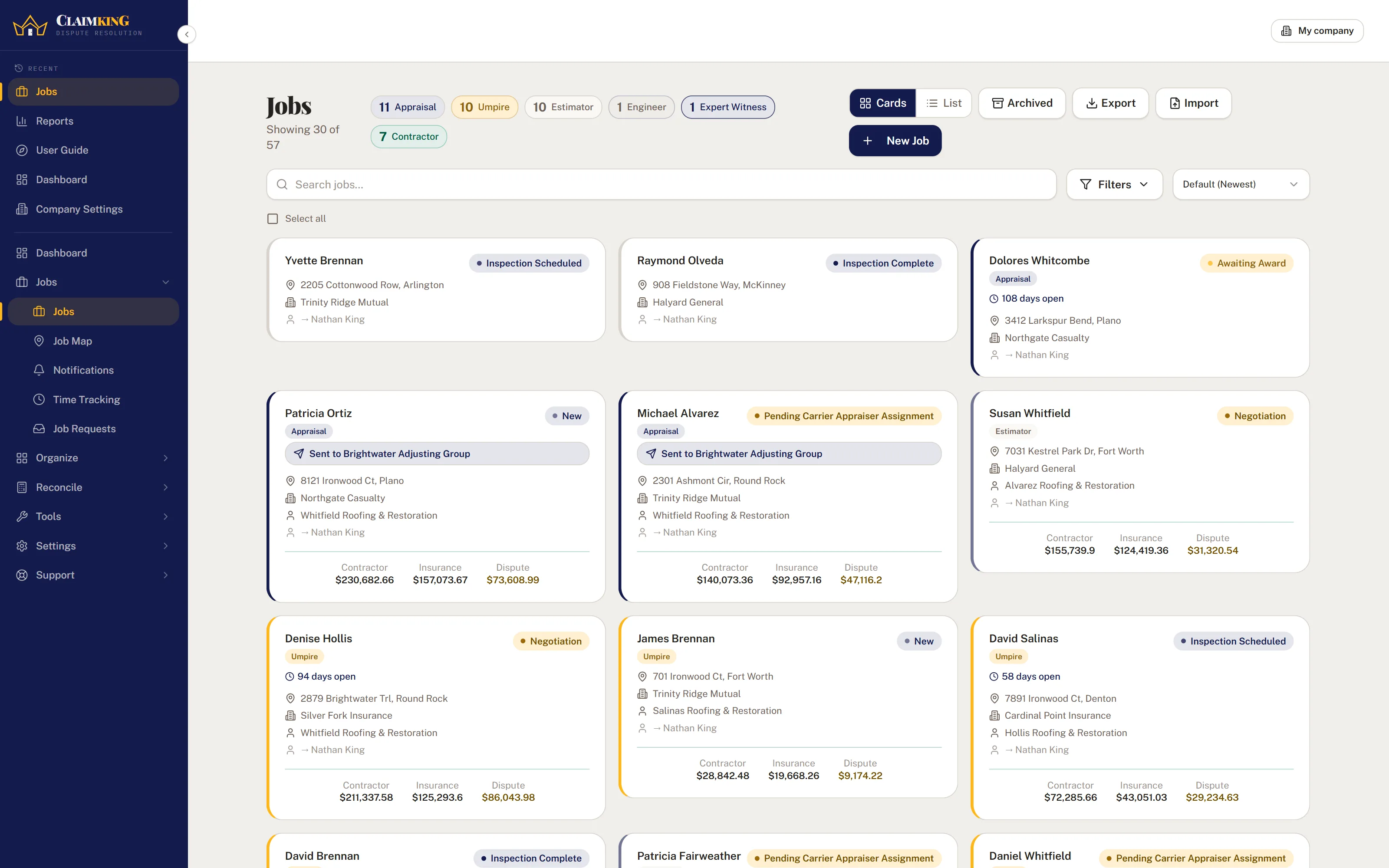
Manage each claim from intake to award.
Create a claim with a job number, property address and homeowner name. Pick a job role and the financial fields, milestones and expected documents all change to match. Appraisal, umpire, estimator and contractor come as standard, and a firm that also works engineering or expert witness files can switch those on as well.
- Search everything at onceJob numbers, homeowner names, addresses and insurers — all searchable at once.
- An assistant you can type or talk toPress Ctrl+K on any page and type or say what you need, such as starting a job, adding a task, finding a file, recording a check or asking how many jobs came in this month, and it gets it done right there without you having to go looking for the right page. It works out what you mean from your own words rather than with AI, it can only do what your role already allows, and it shows you each change before anything is saved.
- Filter by role, status and moreRole, status, appraiser, umpire, contractor, carrier, damage type and assignee.
- Bulk actionsChange status, reassign, archive, duplicate, transfer to another company or sync to QuickBooks across many claims at once.
- Active, Completed, ArchivedA finished file leaves your working list for its own view instead of cluttering it, and one still waiting to be invoiced stays active until it is invoiced.
- Pin and archivePinned claims stay at the top of the list, and archived ones drop out of it without ever being deleted.
- Storm reports on the claimNOAA’s hail, wind and tornado reports near the property around the date of loss, with size, time and distance, printed with their sources for the file.


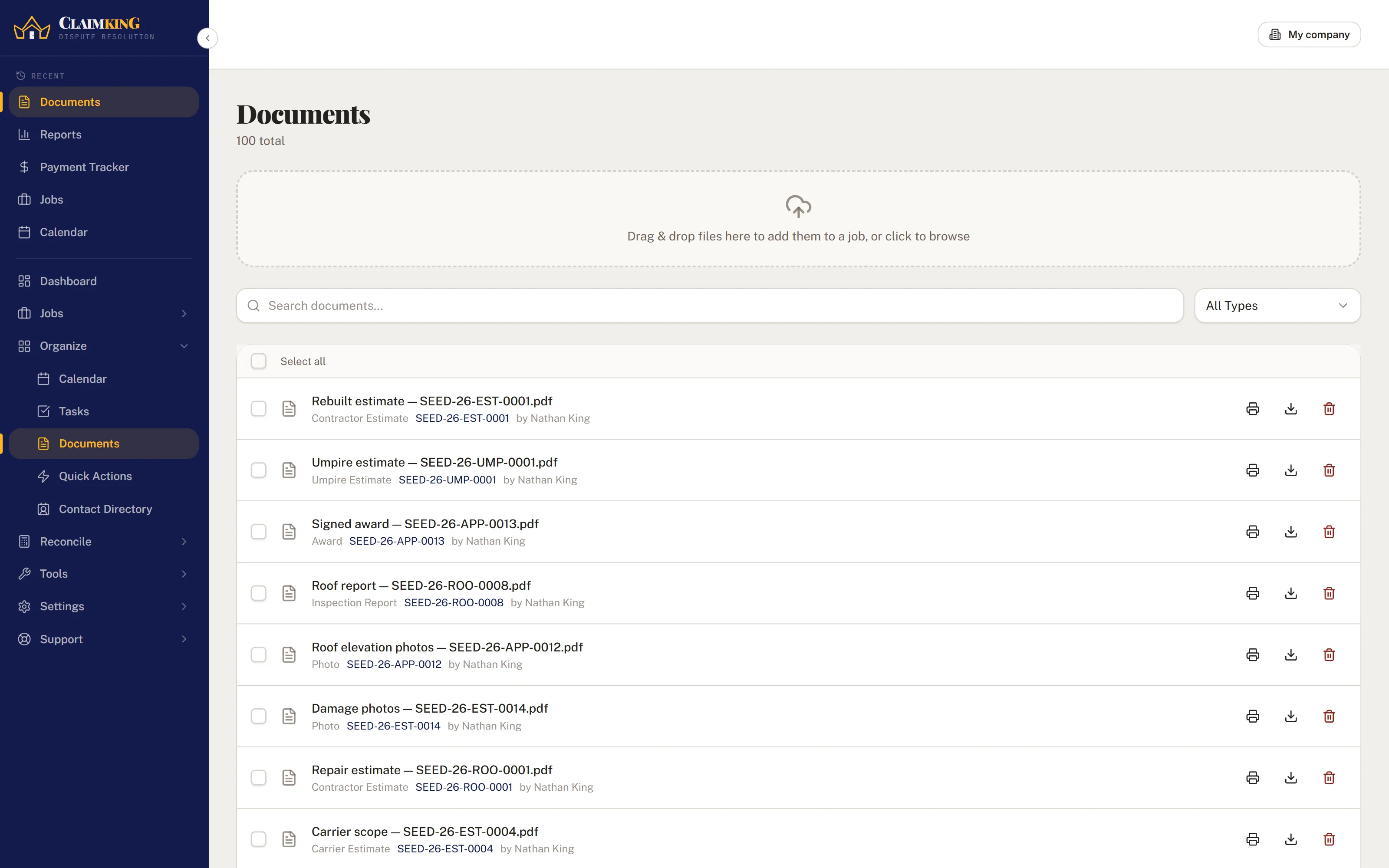
Documents on the claim and in one library.
Attach documents to the claim they belong to, then find them again from a searchable global library. Reusable email and report templates fill in claim details automatically.
- Per-claim and globalDocuments live on the file and in one library you can search, sort and filter by file type across every claim, and open right there, whether it is a PDF, a Word file or an Excel workbook. You can also search the words inside PDFs, Word documents and text files, with the matching pages and a snippet from each, at no extra cost and without AI.
- Photos kept apart from documentsInspection photos have a library of their own, below, so a few hundred of them never bury the estimate.
- Photo reportsLay a job's photos out with your notes beside them, in sections with a cover page and two, three or four photos a page, then preview the PDF before you download it or save it to the job's documents.
- Inspection forms on siteBuild your own checklists, or start from a roof, interior or umpire site visit sample, and fill them in from a phone with notes and photos on every item. Completing one can raise a task for each failure and files a PDF report in the job's documents.
- Share linksSend the homeowner, the carrier or a contractor a link to a job's photos or a report that opens without an account. You decide whether they can download and when it expires, can see how often it has been opened, and can turn it off whenever you need to. Share with… does the same for the job itself: pick the person, tick what they see, from where the claim stands to the claim's figures, the job's documents and their invoice, and send it from the app, kept current as the job moves.
- E-signatures, includedSend any PDF on a job to the homeowner, a contractor or anyone else to sign from their phone, without an account and without a per-signature fee. Signatures land on the lines your template puts them on, a certificate page records who signed, when and from where, and the signed copy is saved on the job and emailed to everyone.
- Templates with variablesBuild a letter or report once, let claim fields populate it, and put a signature line where the homeowner signs.
- Knowledge base & policy libraryInternal guides, training material and appraisal SOPs, kept with the work.
- Your letterhead on reports and lettersReports and letters come out on your own letterhead — your logo, your details, and the header and footer lines you set. Company fields sit alongside the claim fields, so a signature block does not have to be typed into every template.

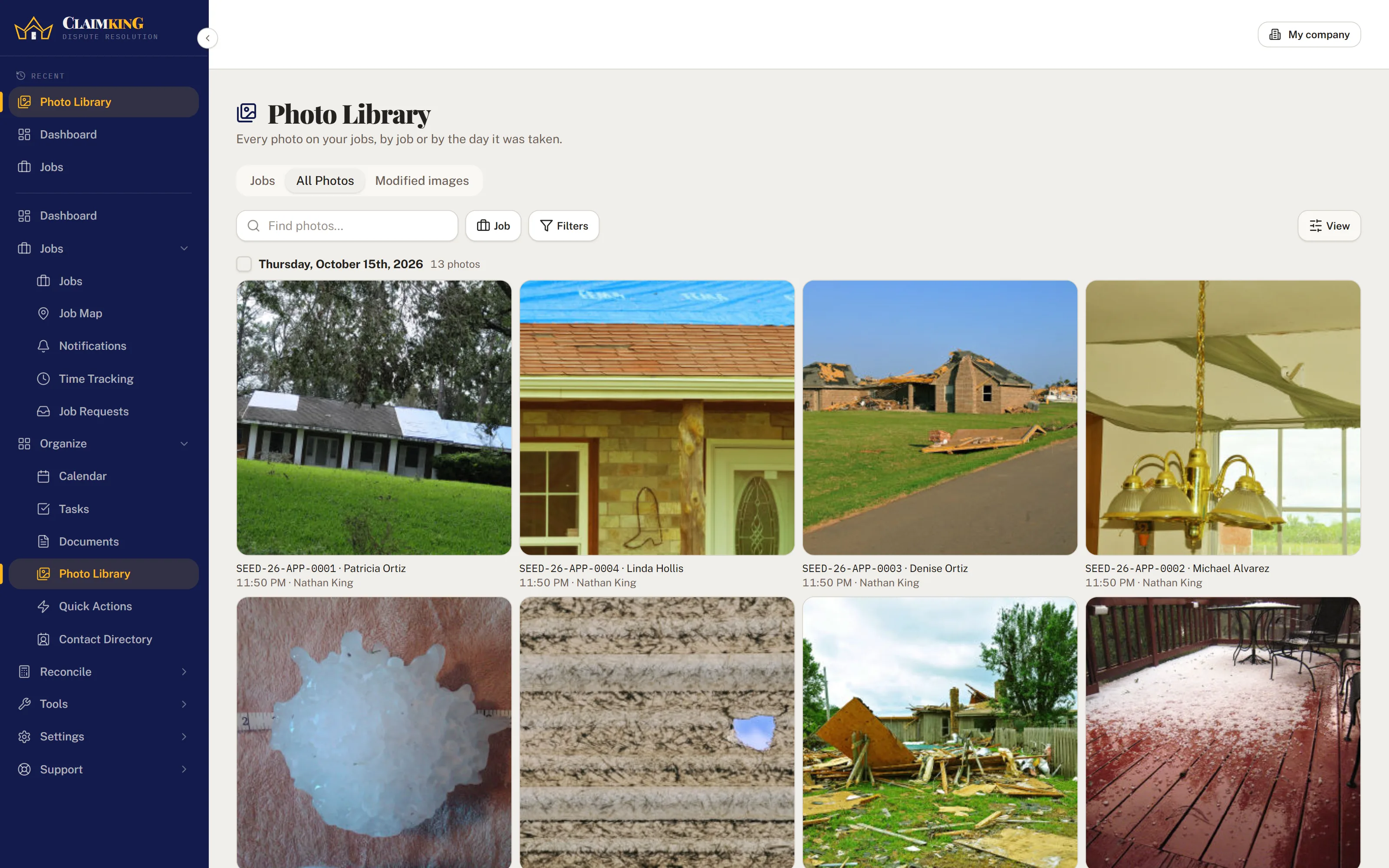
Every photo, on the job it belongs to.
Inspection photos are kept apart from the documents, in a library of their own, so a few hundred roof photos never bury the estimate. Upload them from the job or from your phone, and they are sorted by the job and by the day they were taken, with a note of whether each one was actually taken at the property when the photo carries that information.
- Browse by job or by dayEvery photo across the firm in one library, grouped by the job it is on or by the day it was taken, so the photos from one inspection sit together even when they were uploaded weeks apart.
- Tag them by what they showRoof, interior, elevation, damage, whatever you decide, and then filter by tag so you can pull up just the north slope photos when the carrier asks about them.
- A description, a task or a comment on any photoNote what a photo shows, turn it into a task for whoever is going back out, or leave a comment for the rest of the team, right on the photo.
- Taken at the propertyWhen a photo carries its location, the library checks it against the property address and says whether it was taken there.
- Download a selection or the whole jobPick the photos you need, or take the whole job, as a zip; iPhone HEIC photos show and download like any other.
- A smaller copy when you need oneWhen an email or a carrier portal won't take a photo that large, save a lower-resolution copy of it; the original is always kept.
- Draw on a photoAn arrow at the hail bruise, a circle around the lifted shingle, a note beside it. The drawing is saved as a copy you can open and change later, and the original photo is never drawn on.
- Photo reports and share linksLay a job's photos out with your notes beside them as a PDF, or send the homeowner, the carrier or a contractor a link to the photos that opens without an account.


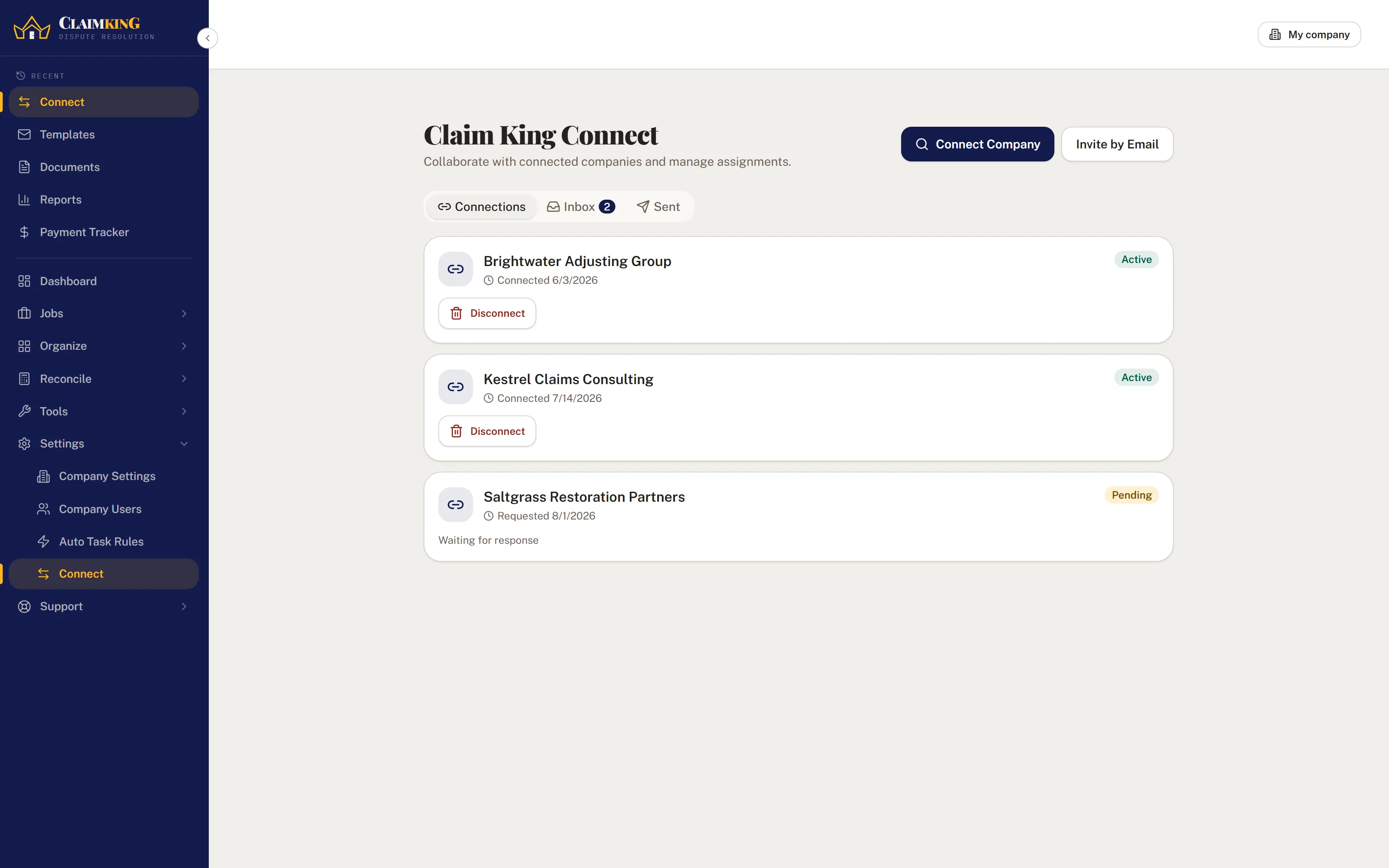
Work the same claim with another firm.
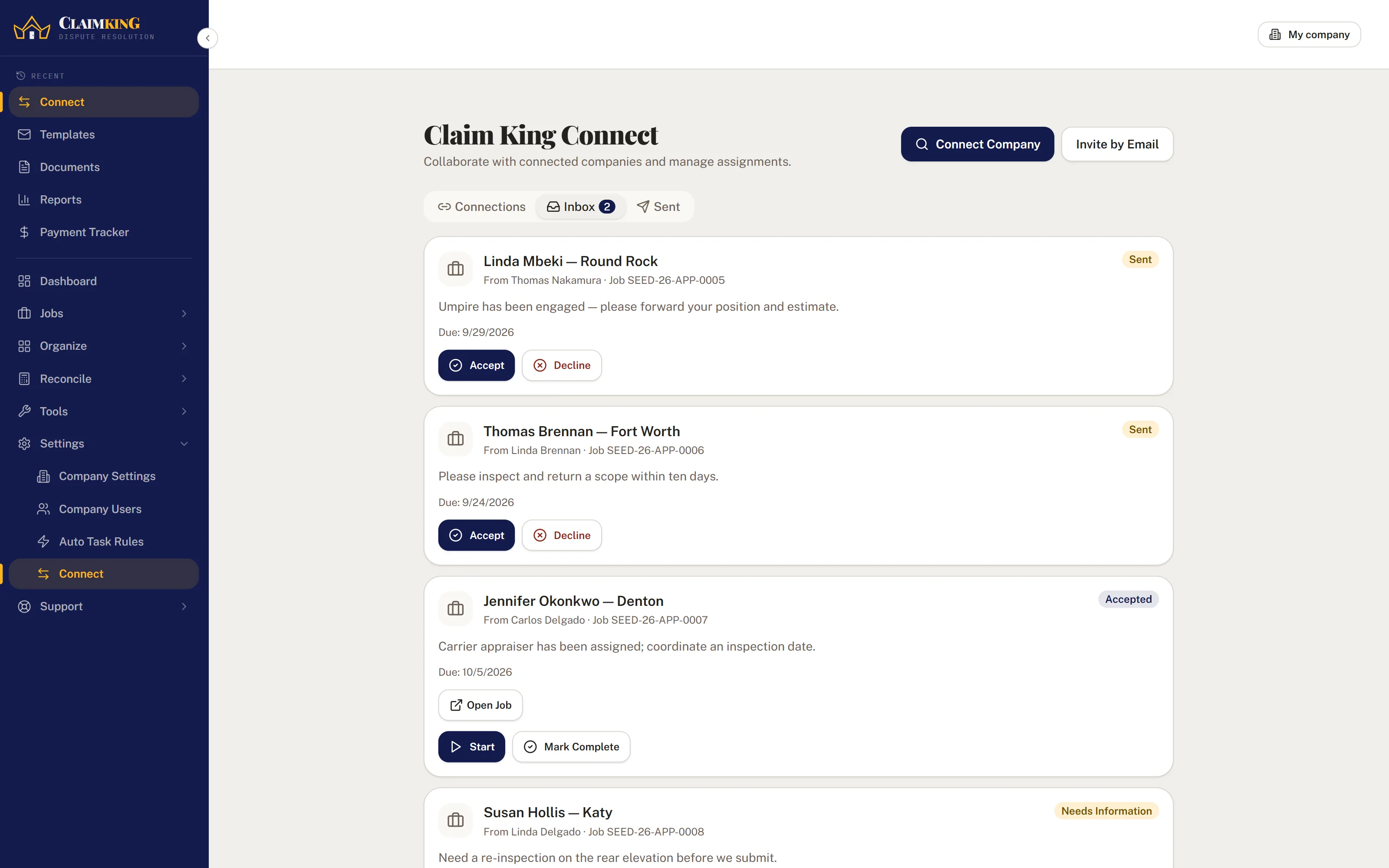
With Claim King Connect, invite another company into a shared workspace. Send assignments with instructions and due dates, and a mirror job is created on their side that stays in sync with yours.
- Updates go both waysStatus, contacts, financials and dates update on both sides automatically.
- Three tabsConnections, Inbox and Sent show what is pending on each side.
- Preview contacts before syncingPreview each contact as NEW, UPDATE or IN DIRECTORY before you apply anything.

Invoicing, payments and payouts.
Everything financial about a claim is kept on the claim: what was estimated, what was disputed, what was awarded, what has actually arrived, and what you still owe out.
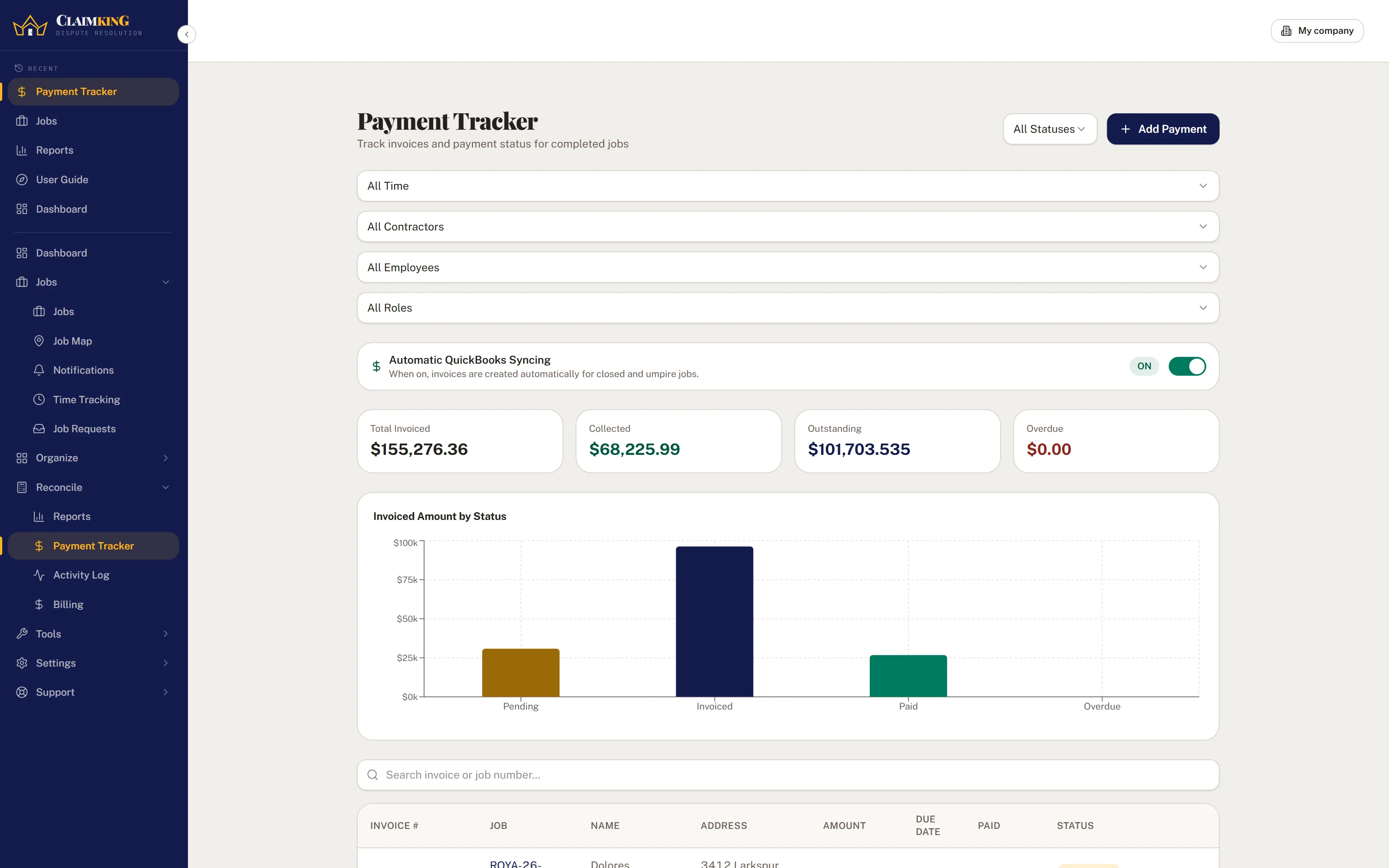
- Balances update automaticallyLog a payment and the outstanding balance recalculates. Invoiced, collected and overdue roll up across every open file.
- Umpire fees split in halfInsured and carrier are invoiced separately and tracked separately, because they pay at different times and often different amounts.
- Payouts and expenses tooEach share of the fee owed to the employees who worked the file or whoever referred it, plus mileage, umpire fees and subcontractors, all counted against the job.
- Fees calculated for youOff until you set it up. A flat fee, a percentage, or a bracket schedule for each kind of work, based on the award, the dispute or the increase over the carrier, and the fee is worked out when the award goes in. A fee typed by hand is never overwritten.
- Bill in stagesA retainer up front and the balance at the award, or a fee split into equal payments for a client who needs to pay it in parts, with each part invoiced and chased on its own.
- Every part of the awardRCV, ACV and the depreciation between them, supplements with their own invoice for the work, the carrier’s checks logged against what is still to come, and every offer and counteroffer along the way.
- Statements for your clientsBilled, paid and the balance due, for one homeowner or across every claim a repeat client has sent you, printed or saved as a PDF.
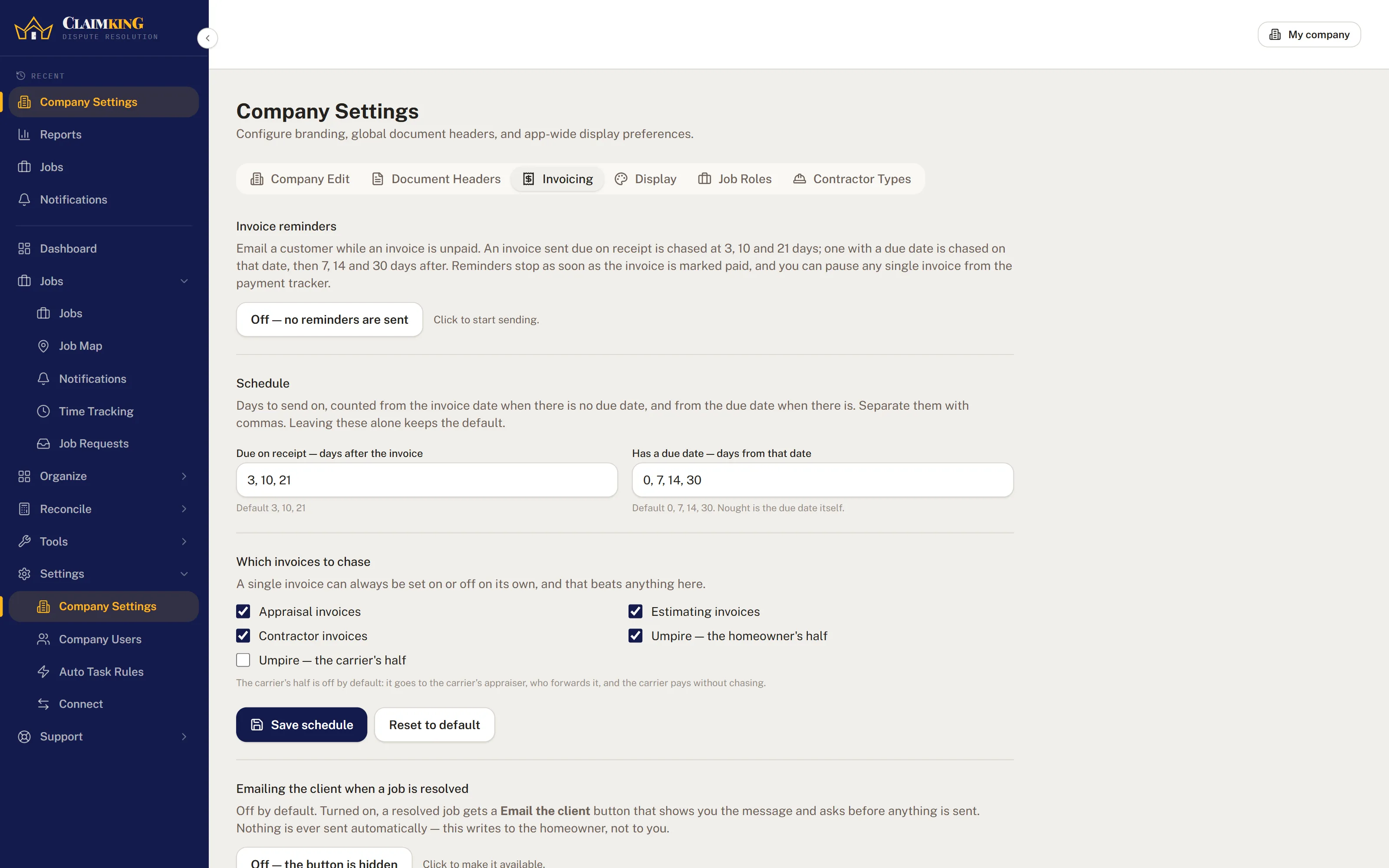
- Automatic reminders for unpaid invoicesOff until you switch it on. Once on, an unpaid invoice is emailed once a day — at 3, 10 and 21 days, or counted from the due date — on whatever days you set rather than the ones we picked. The carrier half of an umpire fee is left out by default, since it goes through the carrier’s appraiser and generally arrives without chasing.
- Payments dated the day they arrivedRecording a payment records the date the money actually arrived, not the day it was marked paid, so a firm that invoices outside QuickBooks still has its receipts counted where the reports read them.
- QuickBooks invoicingConnect your firm's own QuickBooks Online, and a closed or umpire file goes into it as an invoice for your fee, one at a time, in bulk, or automatically if you switch that on. It is included in Core.


Reports built from your own files.
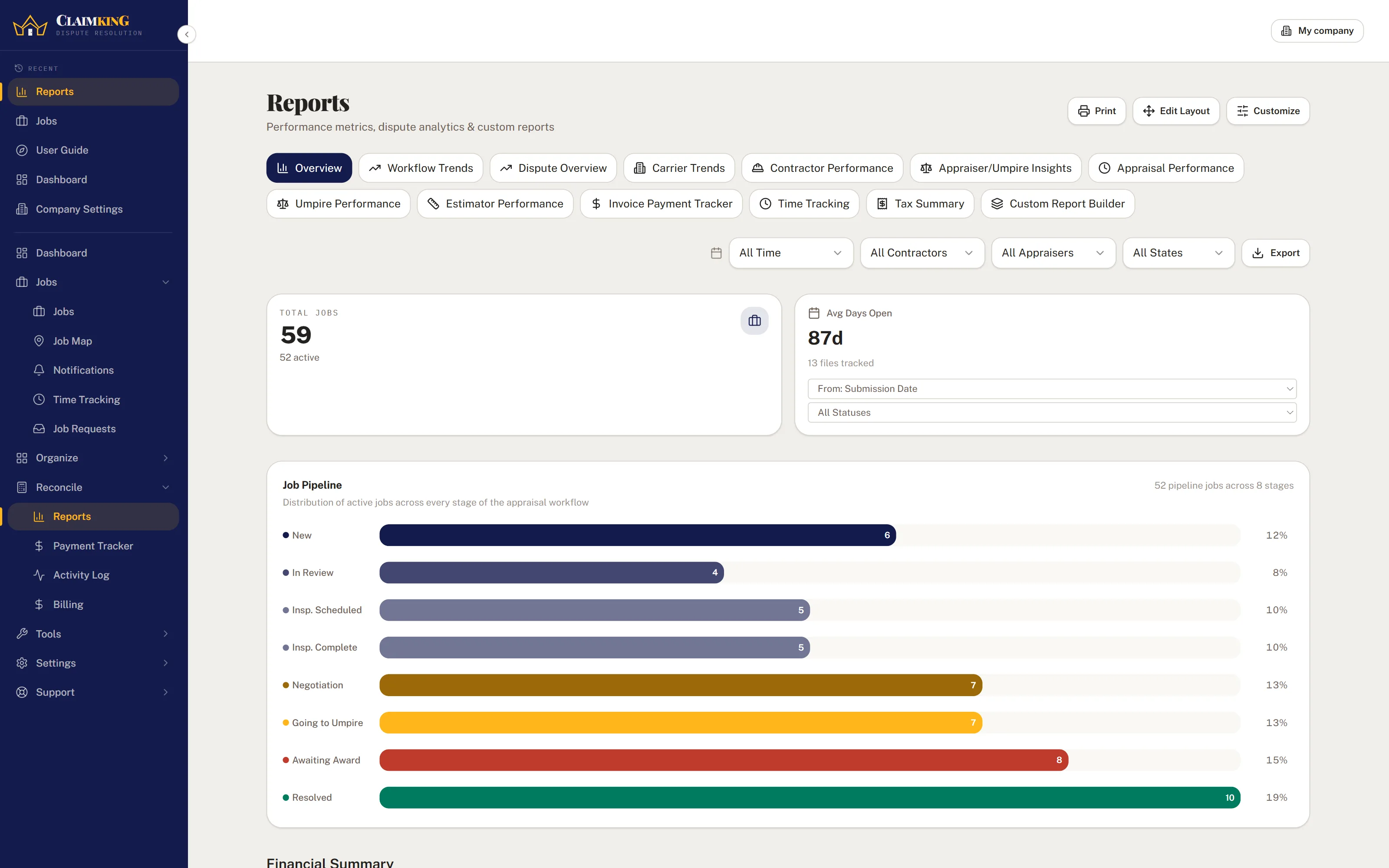
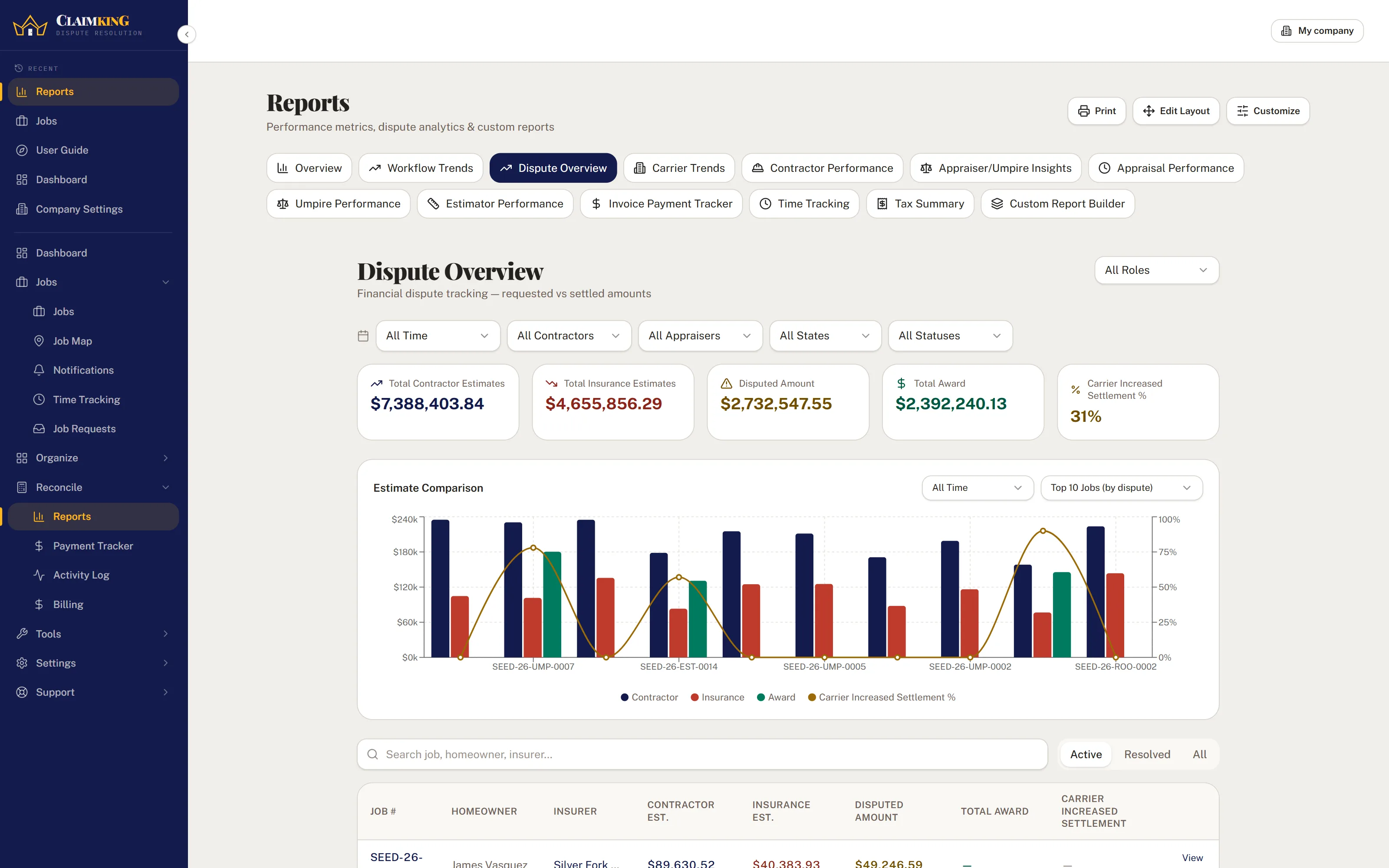
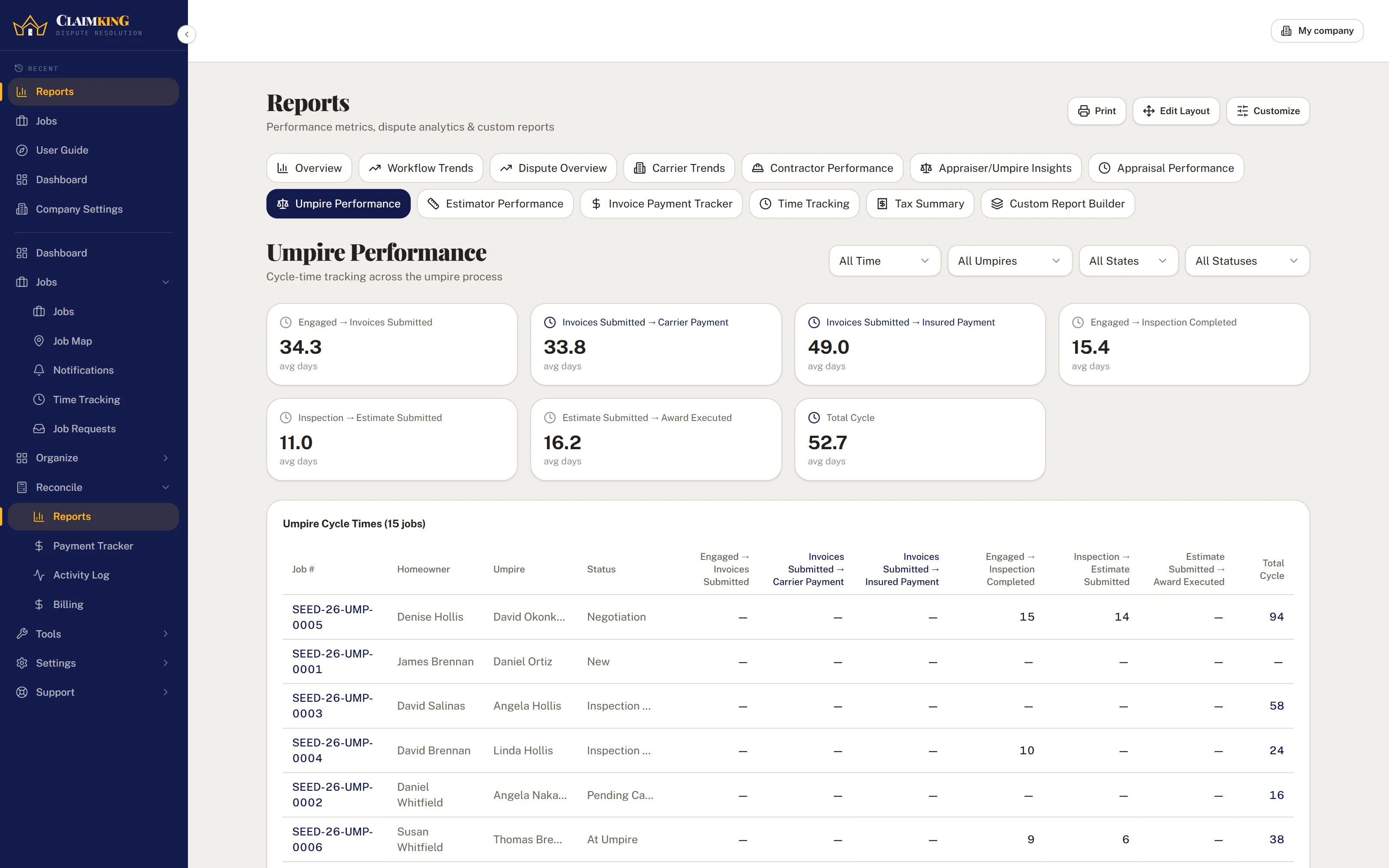
Thirteen report views come built in. Cycle times per role, dispute gaps per file, how each carrier actually behaves once appraisal is invoked, and the work coming in compared with the period before it.
- Cycle times for each roleDemand signed to award, engagement to award, file received to invoiced, measured step by step for each role.
- Carrier behavior over timeWhich carriers settle, by how much over their own estimate, and how long each one takes to get there.
- Work coming in over timeReceived, inspected and finished over a period, drawn against the same length of time immediately before it, so you can see a slow month on the chart.
- A tax summary for the accountantReceipts and deductions on a cash basis, split by quarter with the estimate due dates, anyone paid $600 or more flagged for a 1099-NEC, and the mileage logged against the year. Where the records cannot say who was paid, it says so rather than guessing.
- Drill straight into the filesClick a pipeline stage or a carrier and land on the matching claims, filters already applied.
- Build your ownThe custom report builder takes any job field, and every view exports to CSV.



Your clients see only their own files.
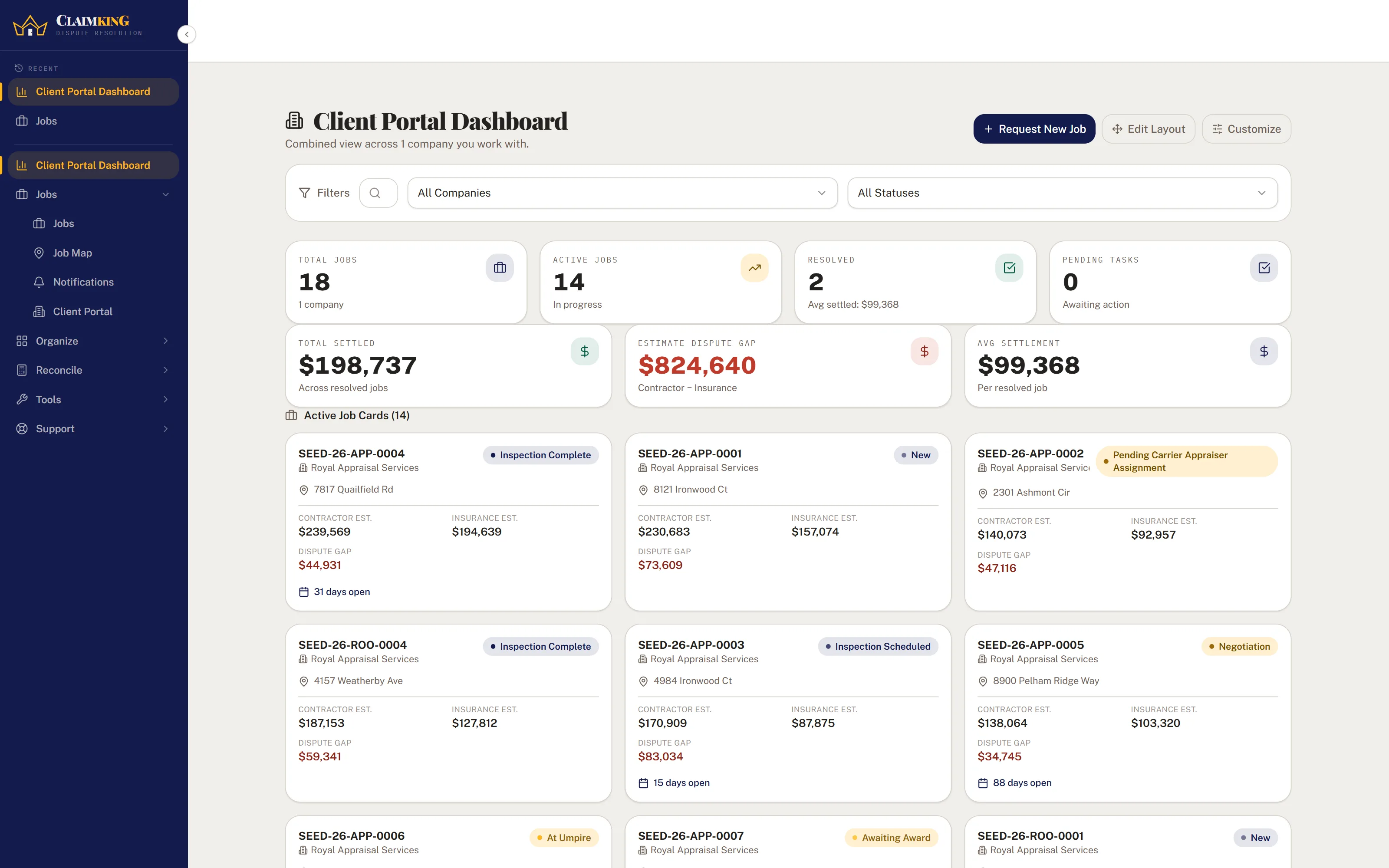
A client, usually a contractor, gets their own login to your firm: a dashboard of the files they are on, and nothing else in your account. So you should not have to forward PDFs back and forth or call each other about what the carrier said.
- Three ways a client gets onto a fileYou assigned it to them, they are the named contractor on it, or they submitted it themselves. Anything else in your account cannot be reached by them.
- Their own dashboardActive files, dispute gaps and settled totals across every firm they work with, in one view.
- They can start the workSubmit a new job request for your approval, and upload documents straight onto the claim.
- On your own web addressPut the sign-in page on an address of your own, such as portal.yourfirm.com, with your logo and firm name on it, so your clients sign in to your firm rather than to a platform they have never heard of.
- A walkthrough for new contractorsA dedicated flow walks a new contractor through the portal, so you should not have to sit down and train anyone on it.

Keep every file current for the whole firm.
If you run the office for an appraiser or umpire, a good part of your day is likely spent keeping every file current and answering questions about where one of them stands. The pieces you will likely use the most are the bulk actions, which change the status on many claims at once, the templates that fill in the claim details for you, and the reminders for unpaid invoices, which go out on the days you set. The owner of the firm decides what each person can see, including the financials.
Texas appraisal deadlines, counted from the demand.New
Under the adopted rule, 28 TAC §5.9805, the award is due “not later than 240 days after the appraisal demand was made” “when an umpire is involved”. The fixed deadlines apply to residential policies “delivered, issued for delivery, or renewed on or after March 1, 2027”, and policies from 2026 follow their own appraisal clause; so the tracker is there to help you get familiar with the dates before then. Each deadline is counted from the appraisal demand, every open one becomes a task, the Jobs list shows a Next deadline column, and a phone notification arrives a week ahead.
Included with every account.
Calendar & scheduling
Inspections, deadlines and appointments across the whole team, in your own Google, Outlook or Apple calendar too.
Time tracking
Billable hours per claim, rolled into a summary report.
Automations
When a field is set, a status changes, a clock runs out, a document is signed, an inspection form is completed or a job is created: raise the task, email the homeowner, move the file and ask for a review when it closes.
Job map
Every claim plotted on a map, so you can plan a route around the ones you need to visit.
Contact directory
Homeowners, adjusters, appraisers, contractors, lawyers, public adjusters and insurers.
Custom dashboard
Rearrange cards and charts to match the way you work.
Import & export
Bring claims in from a spreadsheet, export any filtered list to CSV.
Activity & access logs
A complete record of who changed what, and when.
Notifications
In-app alerts for the changes that matter to you, a Notify me button on every file, and a switch per kind of alert for what reaches your phone, from a signature waiting to a 30-minute event reminder.
Start from a document
Drop an estimate or demand letter on a new job and have the homeowner, property and claim details read off it, so you only have to choose what to keep.
Job creation by email
Forward an assignment email to your firm's own address and have the claim details read for you to check.
Quick actions
Customizable tiles for the things you do twenty times a day.
Help center & user guide
Searchable FAQs and a guided walkthrough, inside the product.
Feedback center
Send ideas and report issues without leaving the platform.
An app on your phone
Install it from the sidebar and it opens from the home screen like any other app, with no app store in between. It opens right away, says plainly when you are out of signal, and tells you when a new version is ready instead of leaving you on an old one.
AI Tools: Estimate ComparisonAdd-on to Claim King Core
Upload two estimates and have the line items matched, with the scope and price gaps between them flagged for review. There is no usage limit, however many estimates you run through it.
See AI Tools pricingClaim Import Services: we bring your claims inOne-time service, priced separately
If your claims are sitting in folders, in a spreadsheet from another CRM platform or in an inbox full of emails, we can bring them into The Claim King as jobs with their documents, photos, contacts and dates attached; you send the files right in the app, as folders, a zip or exported emails, and we send you a Final Report and a spreadsheet of every job we created or added to, with 7 days of free corrections afterwards.
See claim import pricesTry it on one of your own claims.
Thirty days free on Claim King Core, so you can set up a real file and see how it fits before you decide.